

Before you can move Pokémon between Pokémon Home and Pokémon Champions, you first have to link the two together.
From the Pokémon Champions side, this is a little vague, where if you select the option within the Recruit screen, you are told "you will need to link your game to Pokémon Home" first - but with no further explanation of the steps required.
This guide explains how to link Pokémon Champions to Pokémon Home, whether you're using a Nintendo Switch or the mobile phone app.
How to link Pokémon Champions to Pokémon Home and collect your Pokémon
To link the two games together, make sure you have played Pokémon Champions first. Progress to the point where you have completed the opening tutorial, and are presented with the main menu screen.
From here, you must visit Pokémon Home to connect the two games and send Pokémon across.
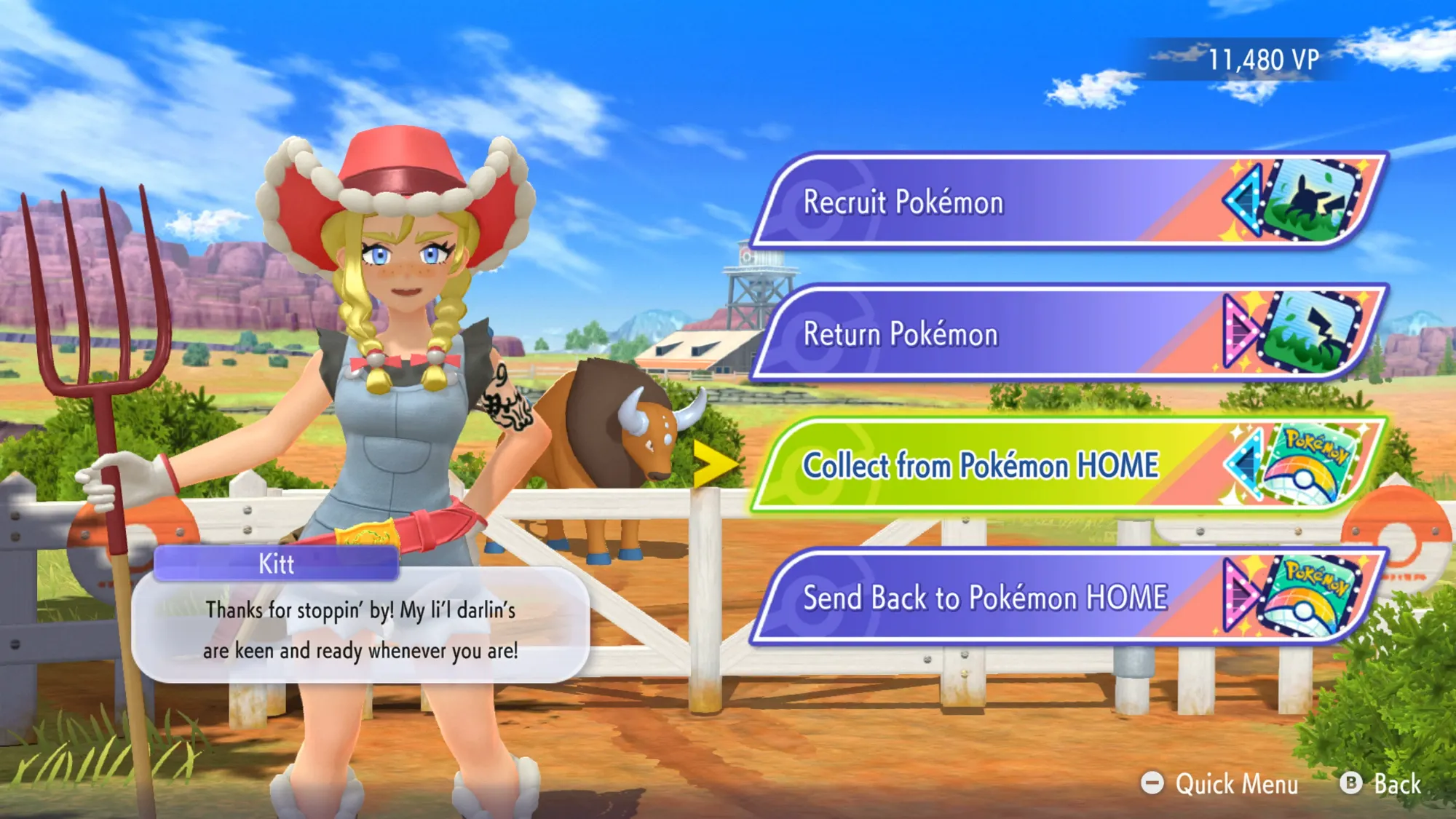
Here's the specific instructions on where to go in both the Nintendo Switch and mobile versions of Pokémon Home. Know that using the mobile version is easier, if only that you don't have to close and switch apps on the Nintendo Switch every time you want to access Pokémon Home - but ultimately the functionality in both versions are the same.
Sending from Pokémon Home to Champions on Switch
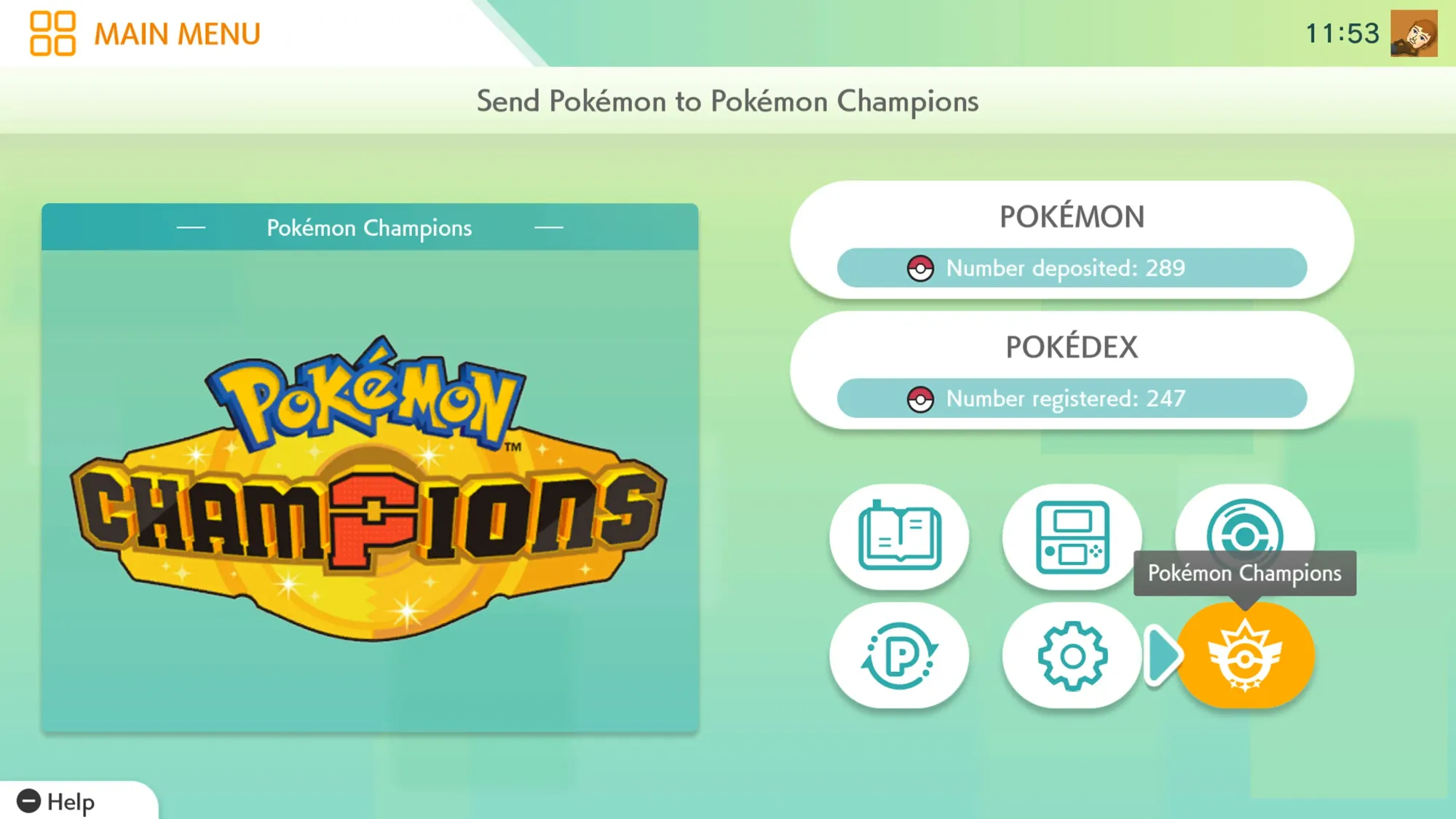
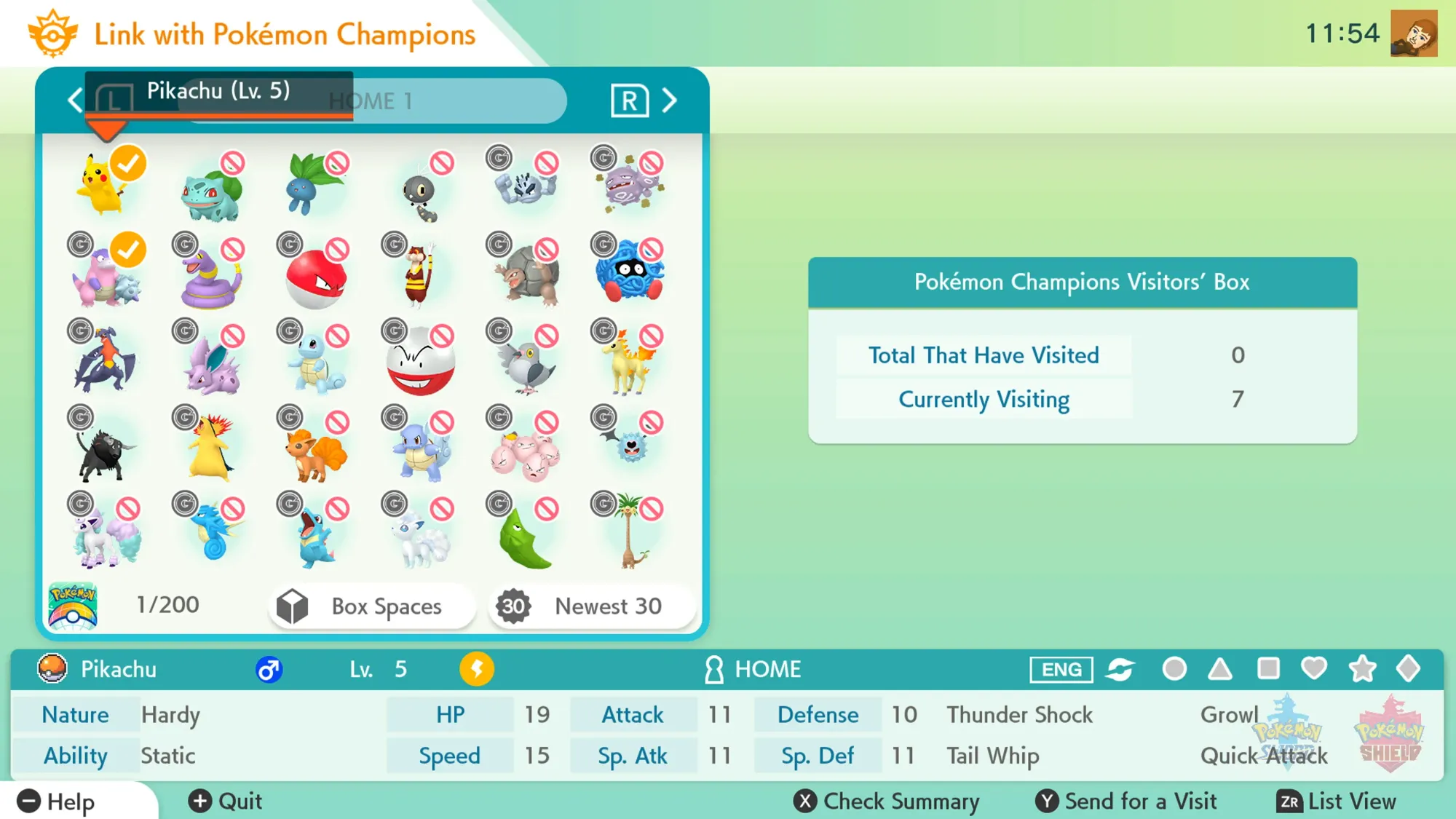
The steps to send Pokémon from Pokémon Home to Pokémon Champions on Nintendo Switch are as follows:
- Select the 'Pokémon Champions' button in the bottom right corner of the main menu
- Confirm the account you are linking with, then select 'Yes'
- Select the Pokémon you want to send for a visit, then press the 'Y' button
- Read the restrictions, then select 'Yes'
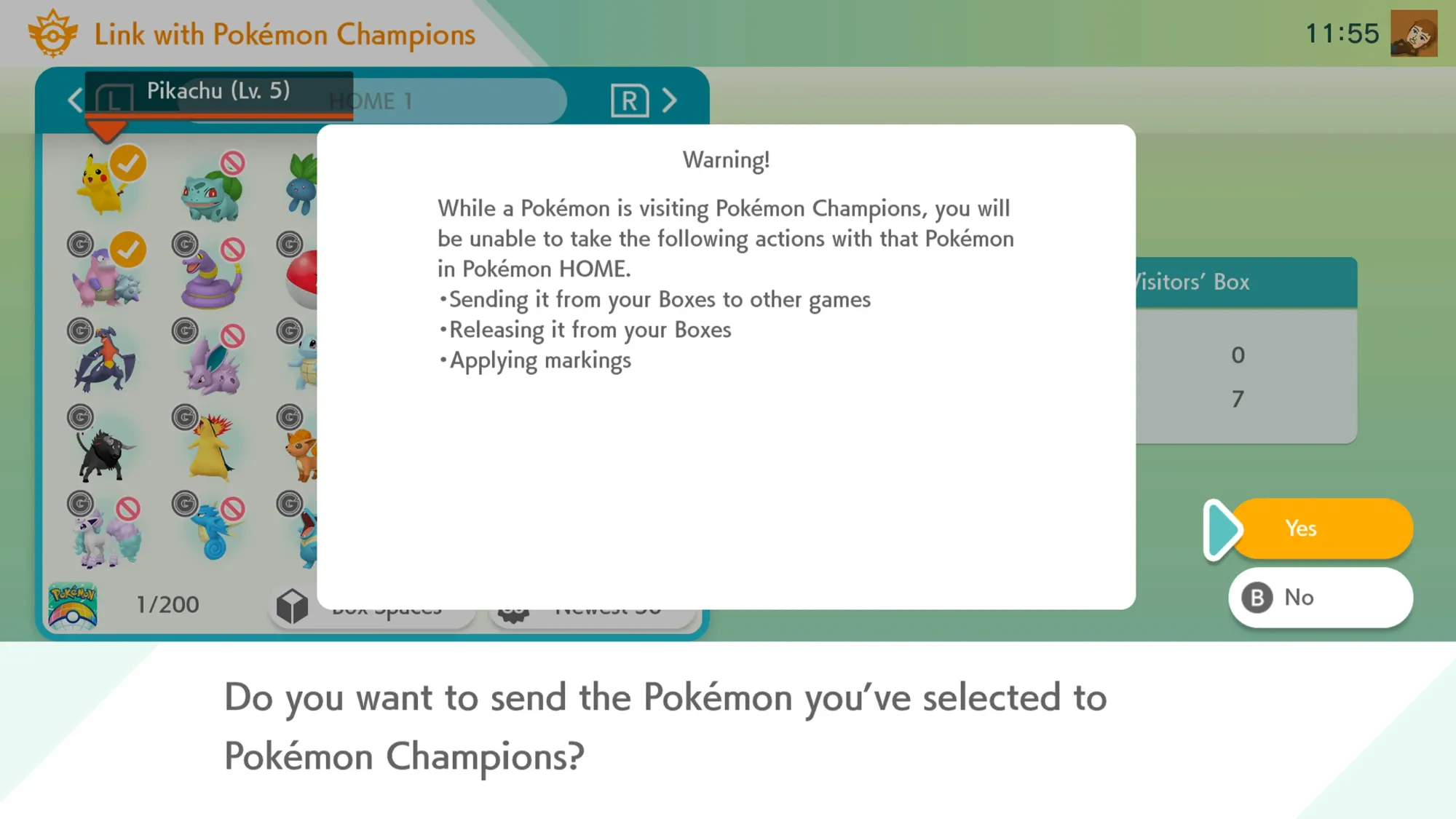
And you're all done on this side. Now return to Pokémon Champions, select 'Collect from Pokémon Home' to then receive the Pokémon.
If you prefer not to close Pokémon Champions every time you move Pokémon, know you can use the mobile version of Pokémon Home instead...
Sending from Pokémon Home to Champions on mobile
The steps to send Pokémon from Pokémon Home to Pokémon Champions on iOS and Android are as follows:
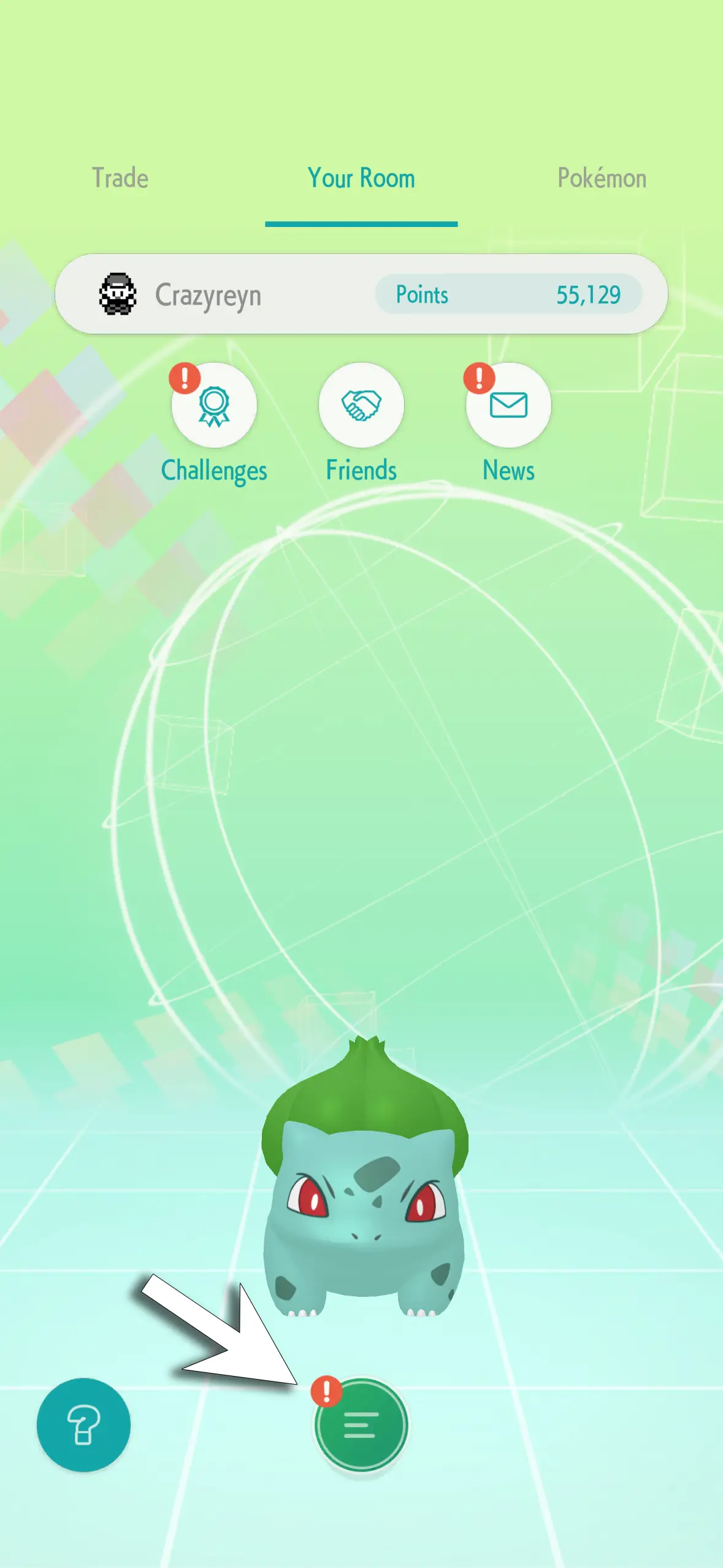
- Press the 'hamburger' menu icon in the bottom center of the main menu
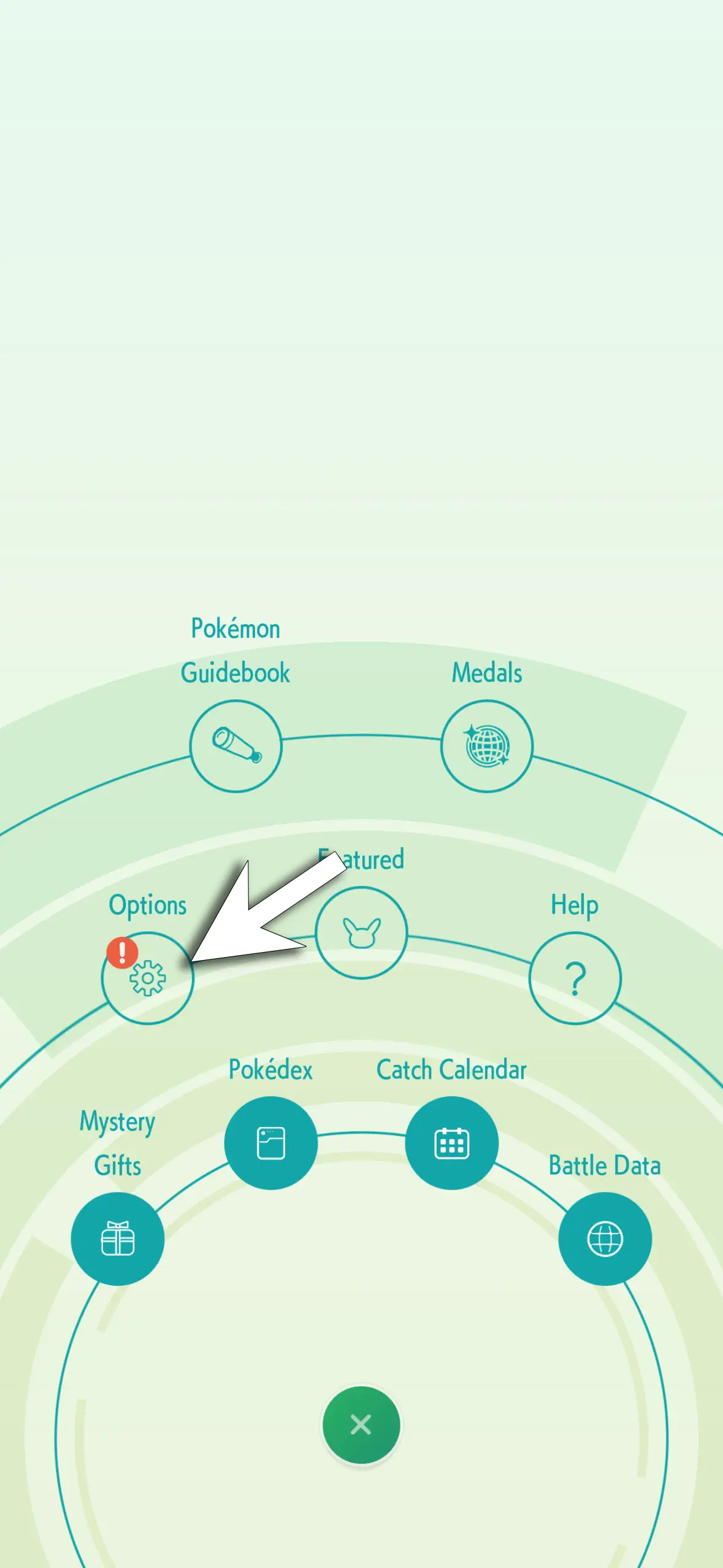
- Tap the Options button
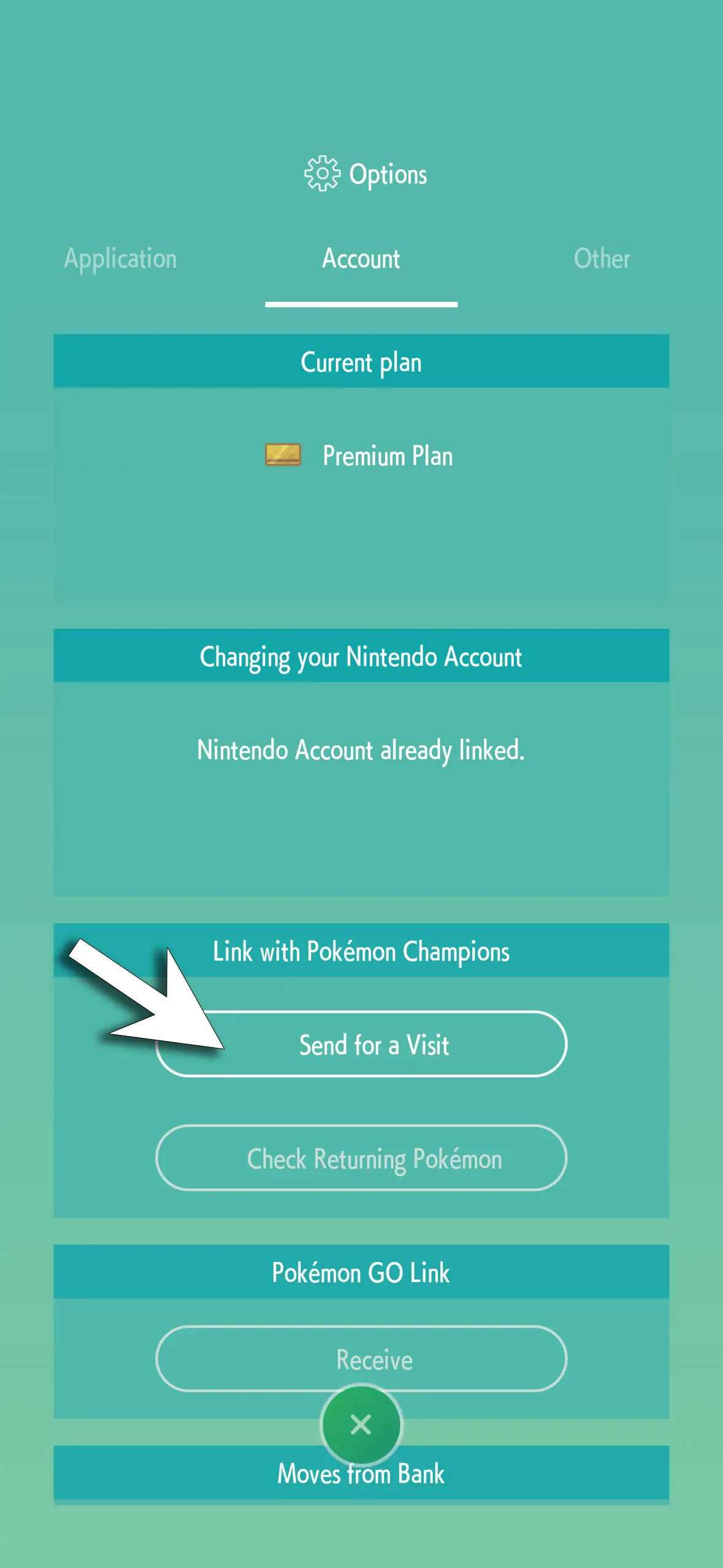
- In the 'Link with Pokémon Champions' area, select 'Send for a Visit'
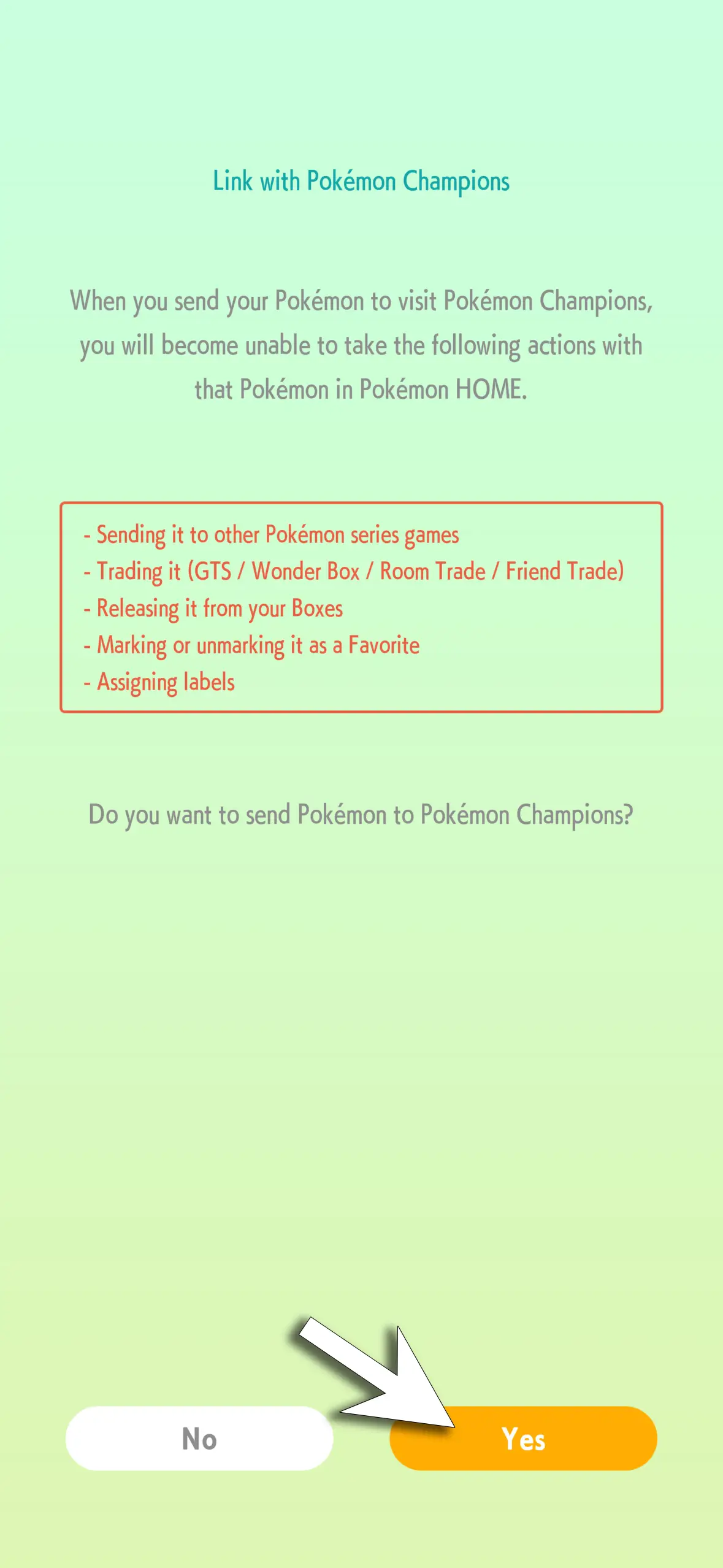
- Read the restrictions, then tap 'Yes'
- Confirm the Pokémon Champions Account by pressing 'Yes'
- Select the Pokémon you want to send for a visit, then tap the 'three dots' button in the lower left corner, then select 'Send for a Visit'
- Review the chosen Pokémon, then tap 'Yes'
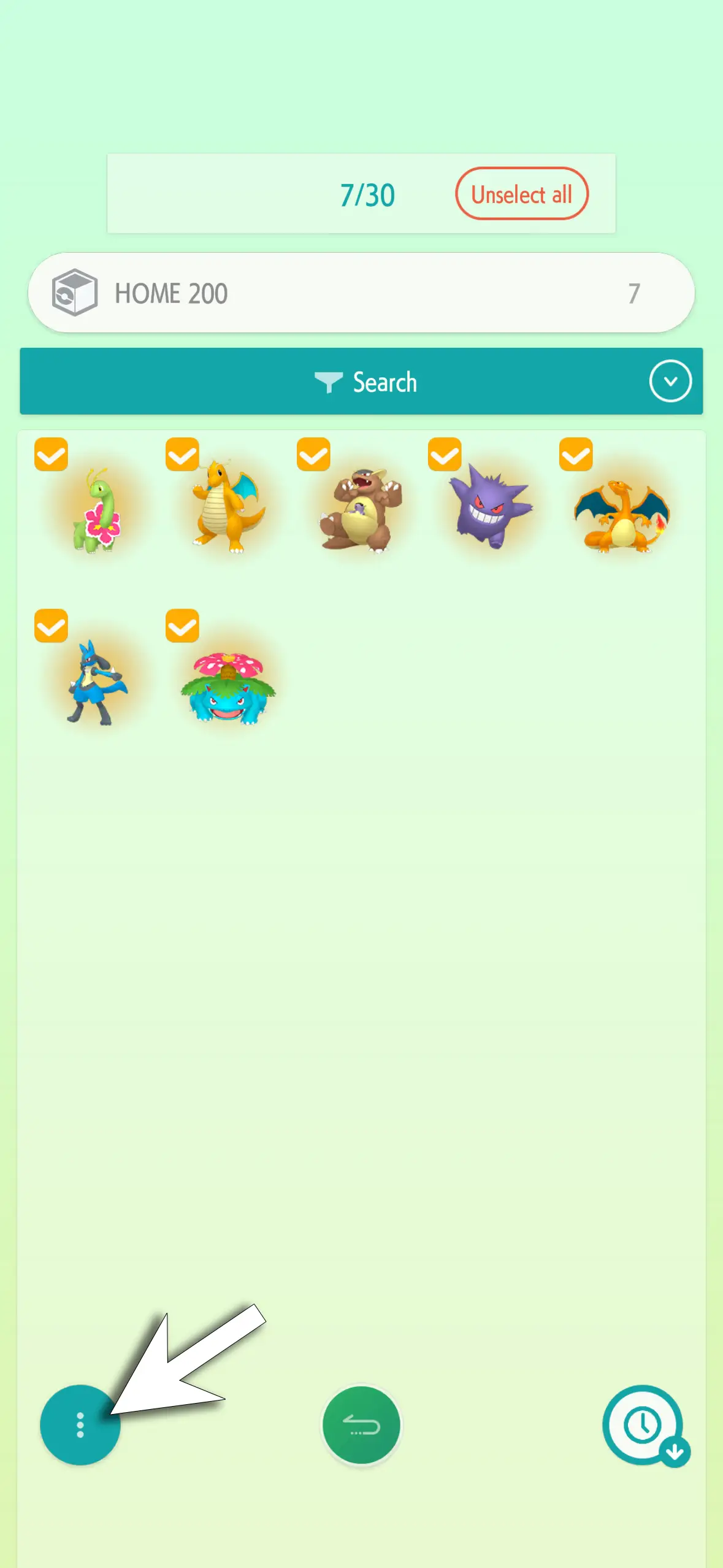
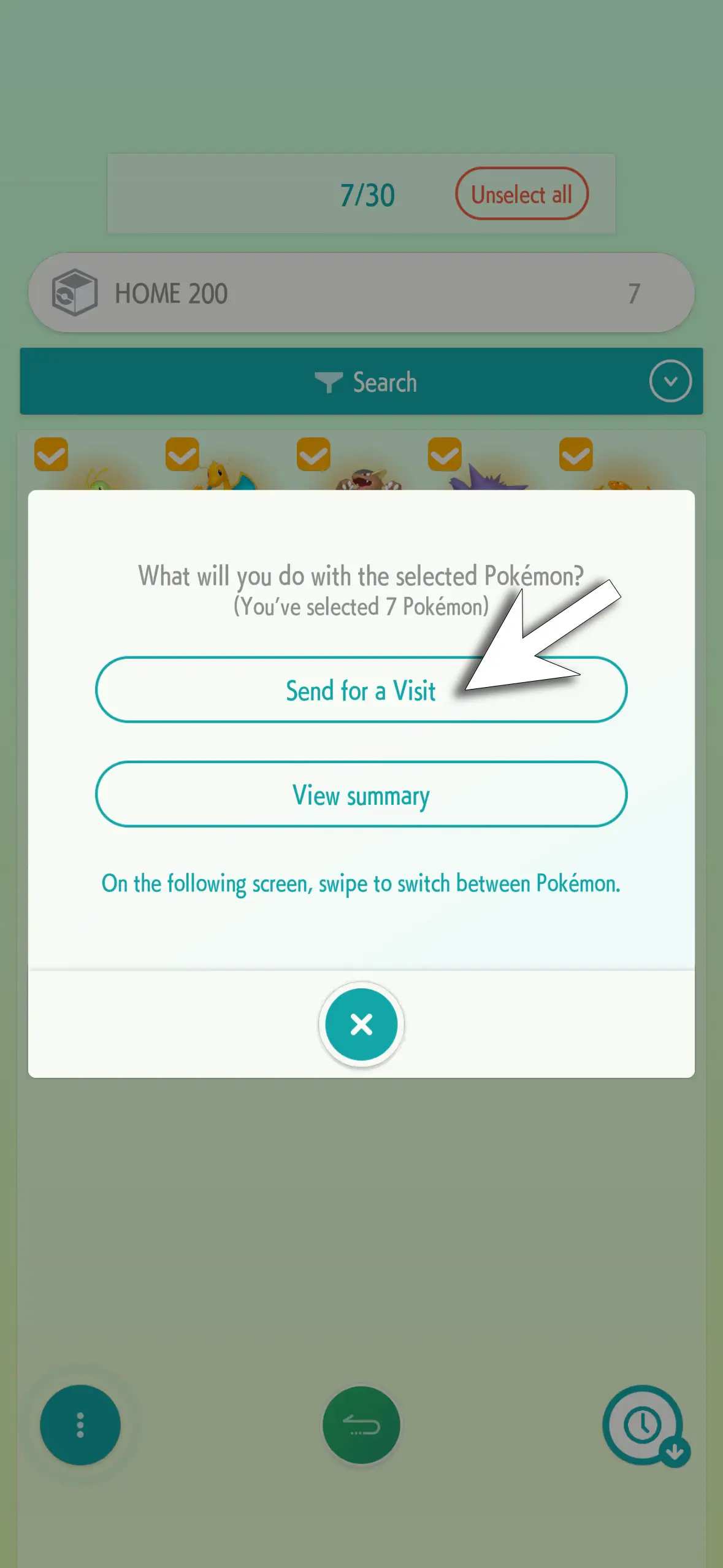
And you're all done on this side. Now in Pokémon Champions, select 'Collect from Pokémon Home' to then receive the Pokémon.
Though the mobile version has more steps, it's actually quicker since you don't need to close Pokémon Home on Switch first.
If you haven't already, make sure you use the Pokémon Champions Mystery Gift feature for giveaways, including free Pokémon and items. Other guides we've covered include how to get VP, Teammate Tickets, Training Tickets, and Quick Coupons.

Sign up to our newsletter for a free guide to the week ahead in Pokémon Go every Monday - plus original reporting and features straight to your inbox.


