

The Switch's Virtual Game Card feature allows you to transfer the use of a digital game or DLC to another Switch, in the same way you would eject a physical cartridge and insert it into another system.
The process involves connecting the two devices to the internet to authorise the transfer or lending of the game in question. This is all well and good if you have access to both systems, but what happens when you have lost the Switch currently hosting the Virtual Game Card you want, or have broken it by, say, dropping it in the bath? How do you get that Virtual Game Card back?
Thankfully, there is a way of getting your Virtual Game Cards to work on another system again through the 'online licence feature'. However, it comes with a couple of restrictions if you wanted to use the lending feature as usual going forward.
Here's a guide on how to eject a Virtual Game Card when you have lost or broken your Switch or Switch 2.
How to eject a Switch Virtual Game Card using the 'online licence feature'
Now you have another Switch and want to play your digital game library that are currently Virtual Game Cards on a lost or broken system, where you do start?
First, ignore trying to access the Virtual Game Card feature on the system itself. If you attempt to load a game that way, you'll be given a warning saying the Switch with the game has to be online, and that you have the use the "online licence feature".
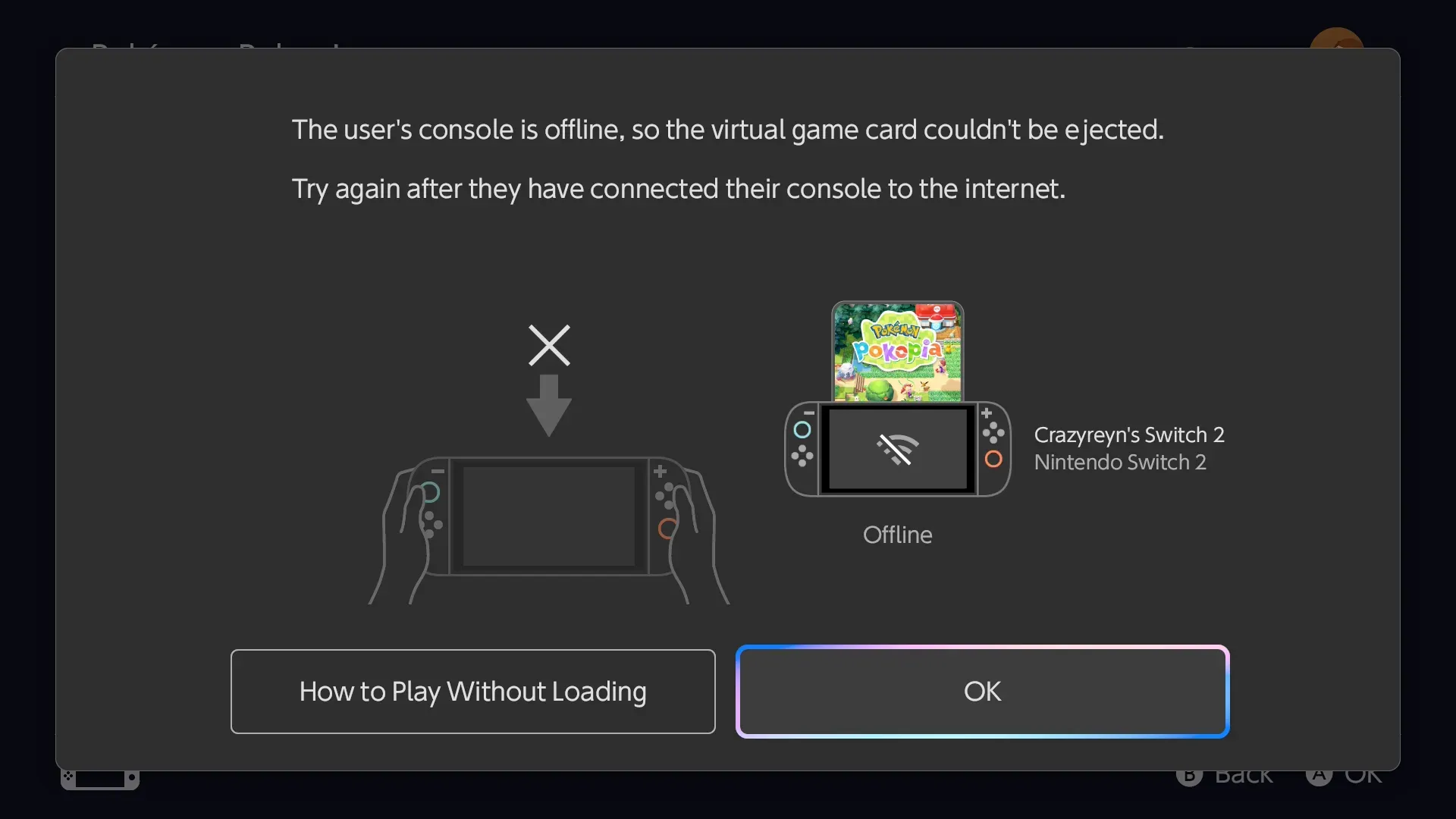
Instead, you have to go to the official website. Visit accounts.nintendo.com/portal, and you'll be greeted with an overview of your Nintendo account.
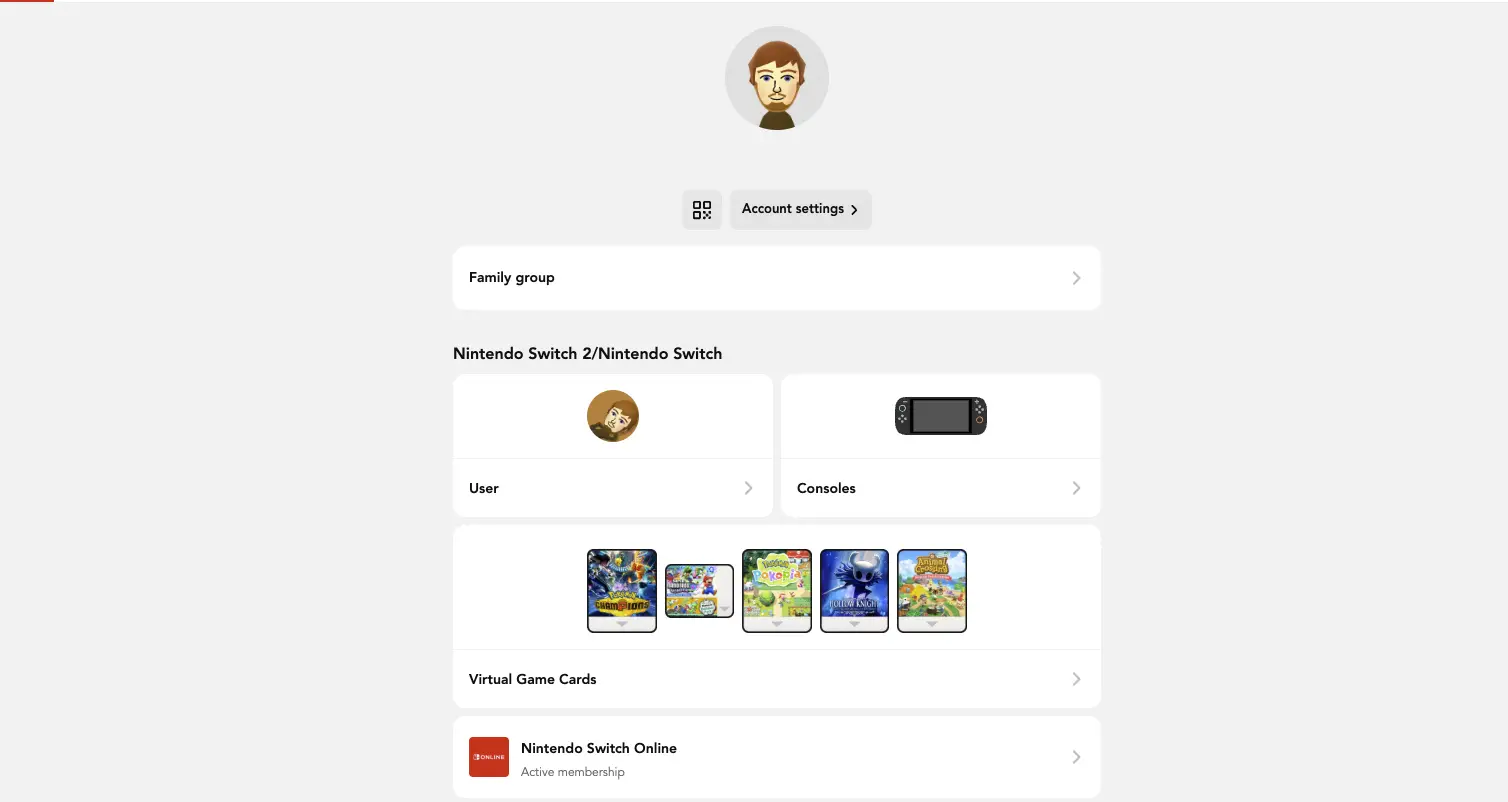
As shown in the screenshot above, you can go to Virtual Game Cards to manage access to each game individually. However, for our purposes, we want to eject everything at once, which requires you visit a different area of the portal.
To remove the licences of every Virtual Game Card from a Switch you can no longer access, go to Consoles, then select the Console in question. (Tip: if they are both named the same because of your username, then you can rename your replacement console in the System Settings first so you can tell the difference.)
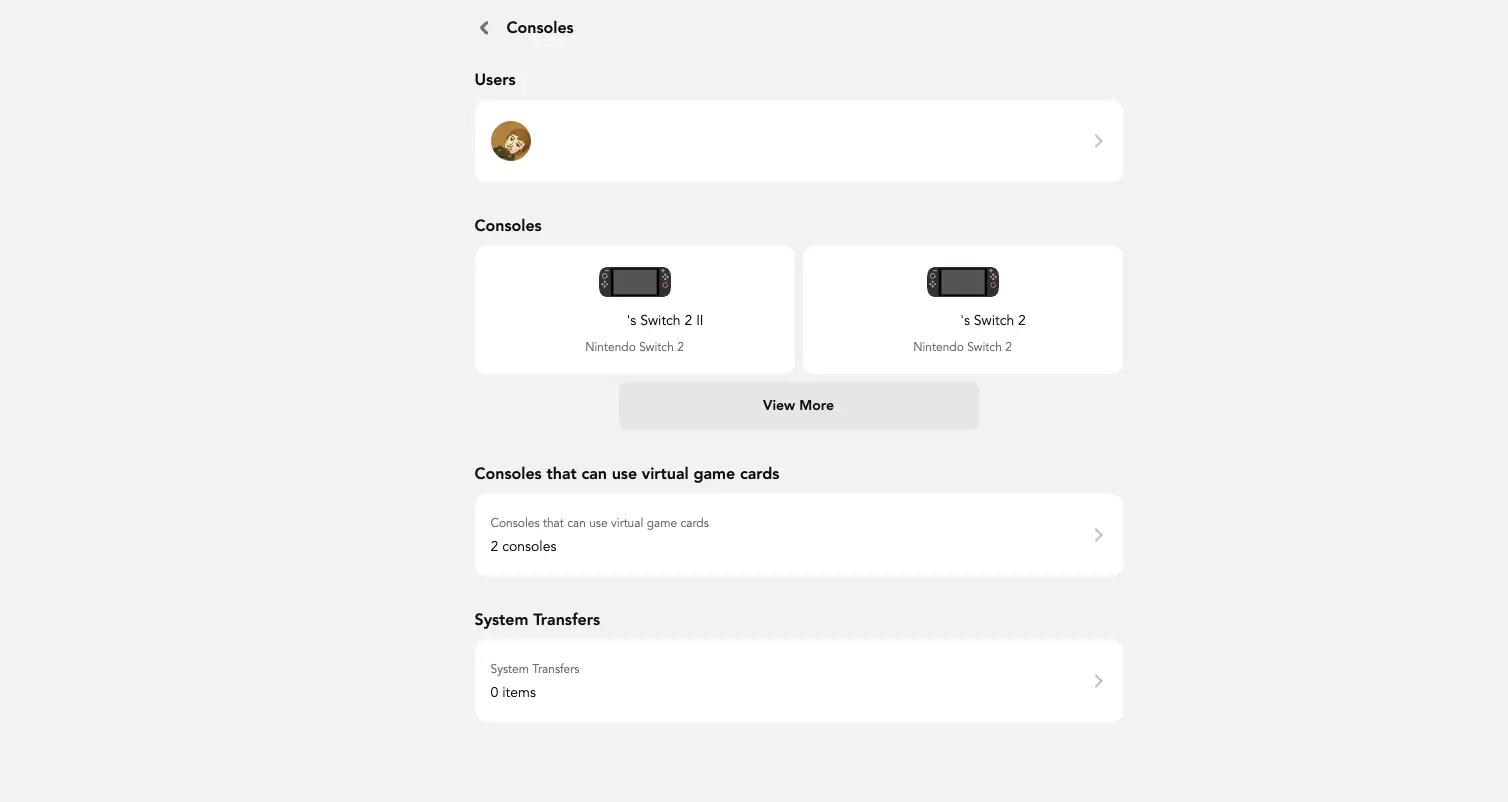
Now select the console you want to mass eject, then select 'Unpair'.
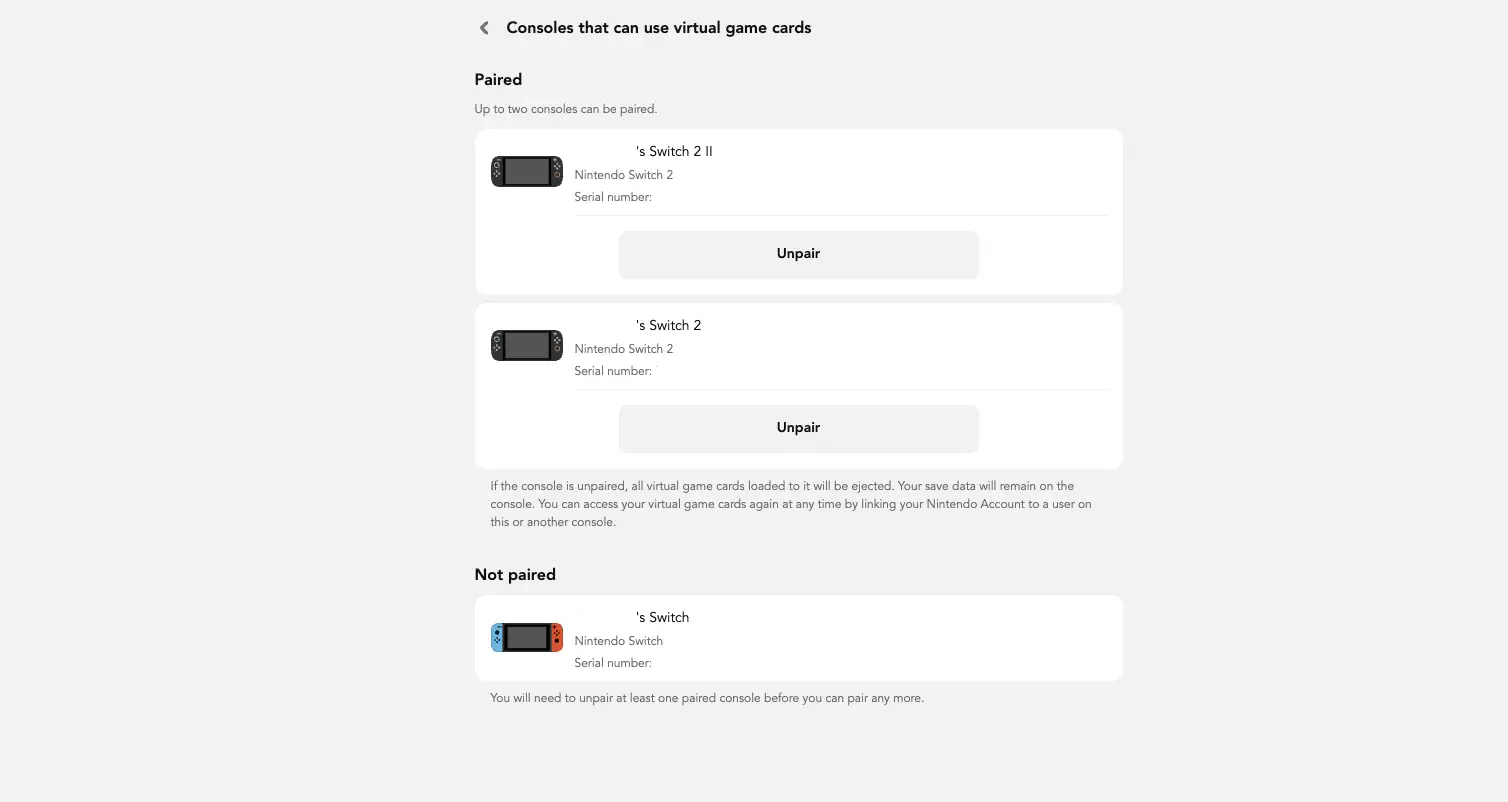
Before the process can be completed, you'll accept the warning that "it's only possible to use this page to unpair one console per pair". In other words, if you lose or break another Switch, beyond that being really bad luck, it means this specific unpairing process cannot be repeated for another year.
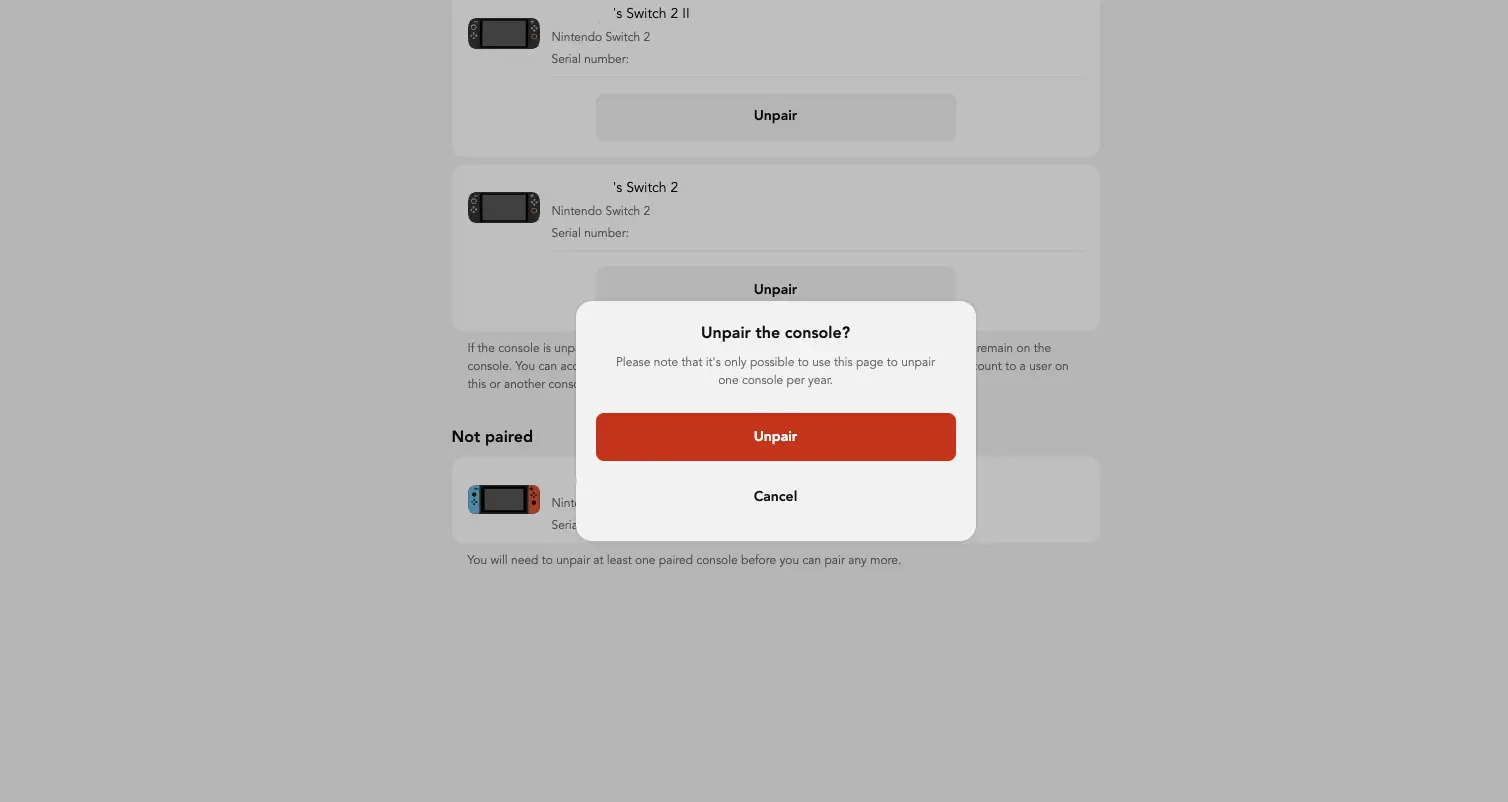
With the unpairing complete, go to your Switch that you want to access your library to, and with the Switch connected to the internet, visit the Virtual Game Card area of the main menu. You now have to pair every individual game you want to access, and download their save files from the cloud, one-by-one.
How do you get your save files from a lost or broken Switch?
If you are a Switch Online Membership subscriber, your save files will be backed up to the cloud and can be accessed on your new Switch (provided it was connected to the internet before your lost or broken it).
To access your save files, make sure you are connected to the internet, then attempt to start the game. You will then be given a prompt saying "existing save data was found" and that you can "keep playing from where you left off". Download the save file - depending on the game and the size of the save file, this might take a few moments - and away you go.
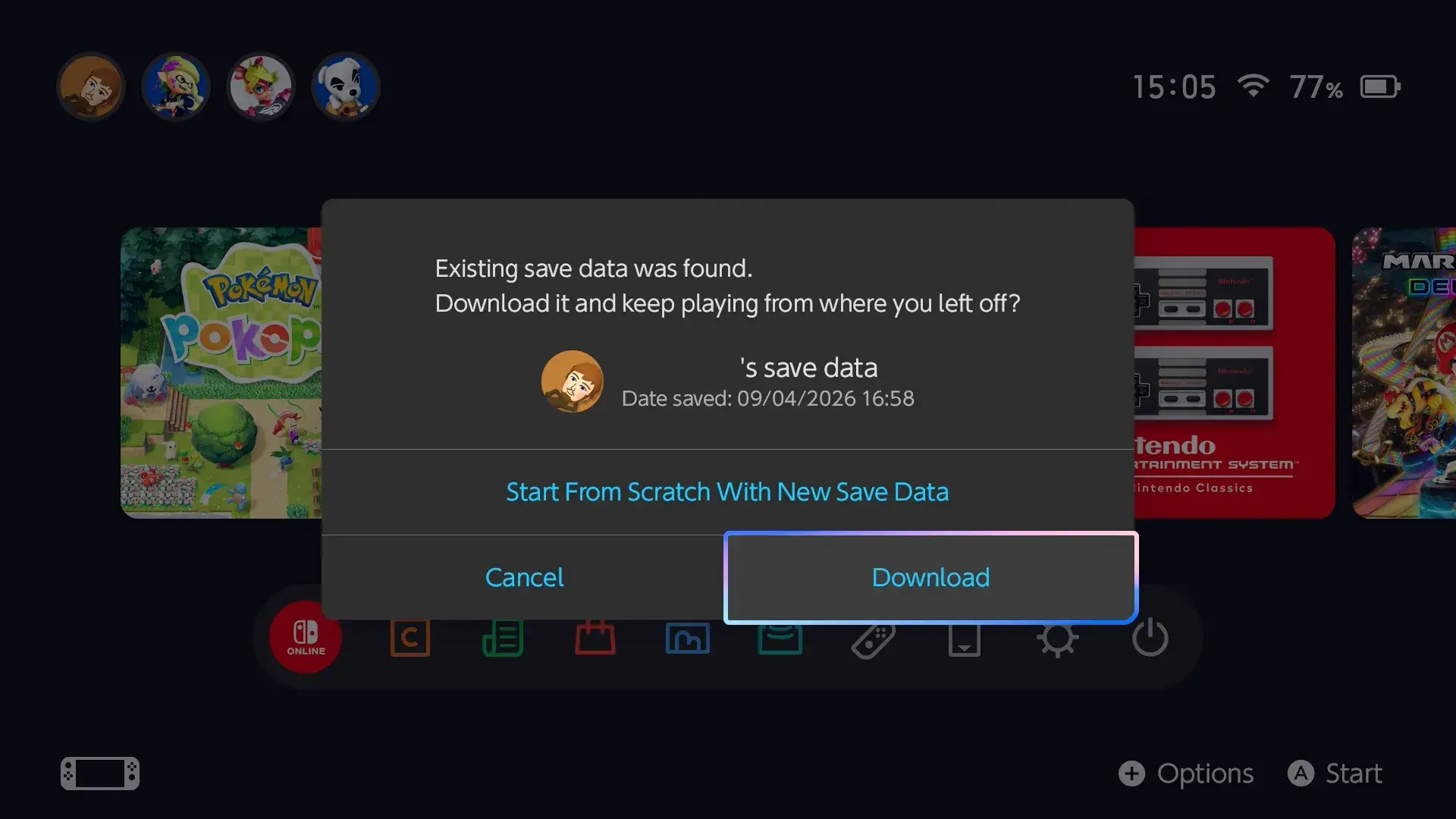
If you don't have an online membership, then I'm afraid to say you're out of luck - those save files remain inaccessible on that lost or stolen Switch. The exception here are any games where progress is saved online anyway, such as live service games such as Fortnite.
Finally, know that not all games can be backed up into the cloud, such as your Animal Crossing: New Horizons island, or saves for mainline Pokémon games (spinoffs like Pokémon Pokopia, however, are fine). Since you've likely put hundreds of hours into these games, consider keeping their save files on a system which you are less likely to lose or break - or simply be as careful as possible when lugging your Switch around with you.

Sign up to our newsletter for a free guide to the week ahead in Pokémon Go every Monday - plus original reporting and features straight to your inbox.


