

The Explorer Gadget in Pokémon Go is a feature that acts as a virtual Go Plus device built directly into the game.
If you're unfamiliar, Go Plus devices allow you to catch Pokémon and spin PokéStops automatically, and the Explorer Gadget works largely the same way - all without having to use a physical device.
The feature - which first appeared in datamines back in April - started rolling out to select players in June 2026 and is now available for all players.
This guide explains how to use the Explorer Gadget in Pokémon Go, and why it might not be working for you.
Update (3rd November): The Explorer Gadget is now available for all players - the guide has been updated to reflect this.
How to get the Explorer Gadget in Pokémon Go
Following a "phased rollout" in the summer of 2026, the Explorer Gadget is now available for all players at Trainer level 20 and higher.
To see if you have the Explorer Gadget, you should see a button on the upper right side of the map screen. If you also open your Item inventory, you should get a confirmation and quick tutorial with how it works.
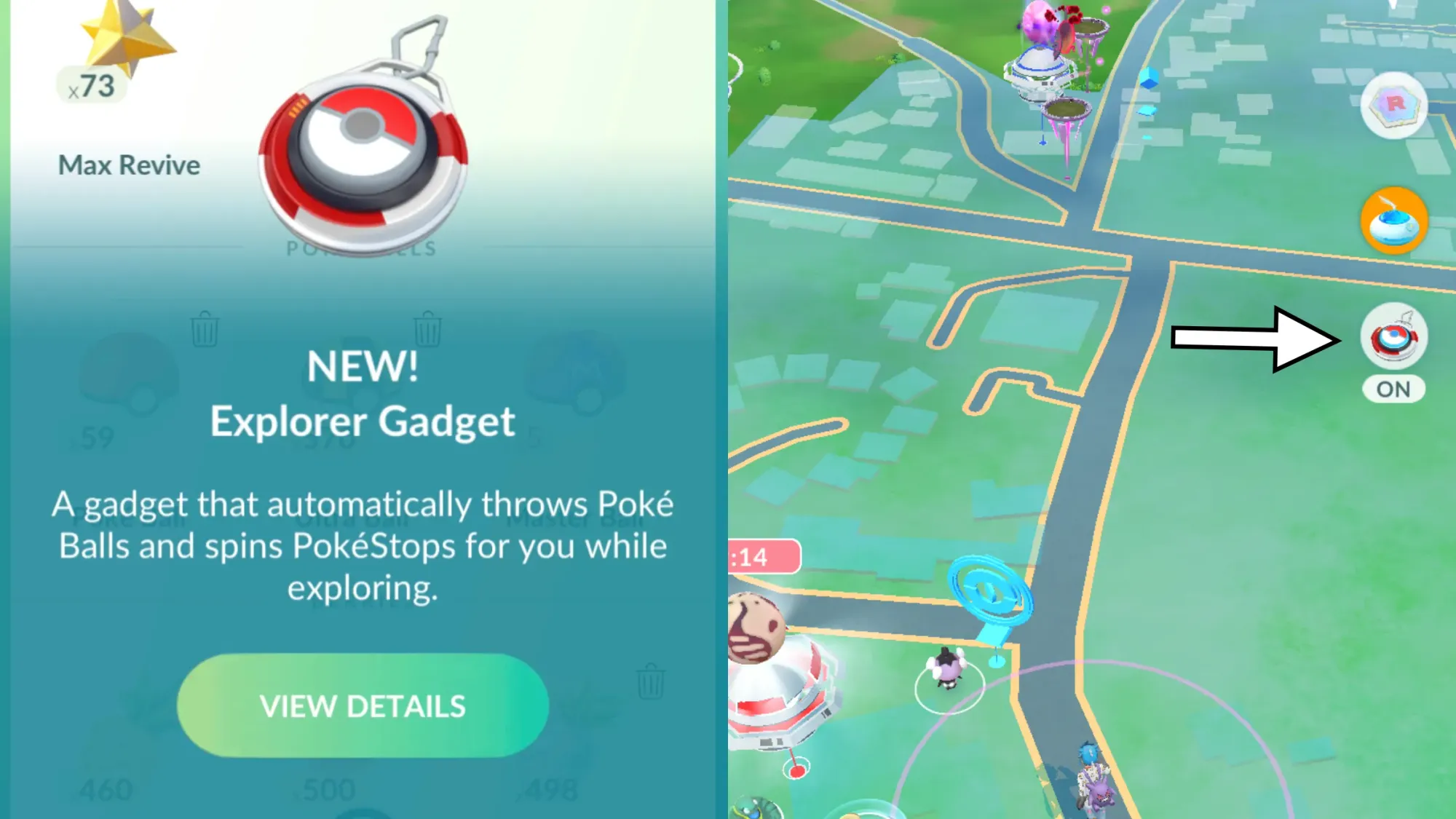
Previously, it rolled out in waves in the following regions:
- 10th June (Australia and New Zealand)
- 31st July (UK and parts of Europe)
- 11th August (United States)
Interestingly, it was also revoked for some players along the way: for those in the 31st July cohort, it disappeared after 24 hours, and returned about a week later.
How to use the Explorer Gadget in Pokémon Go
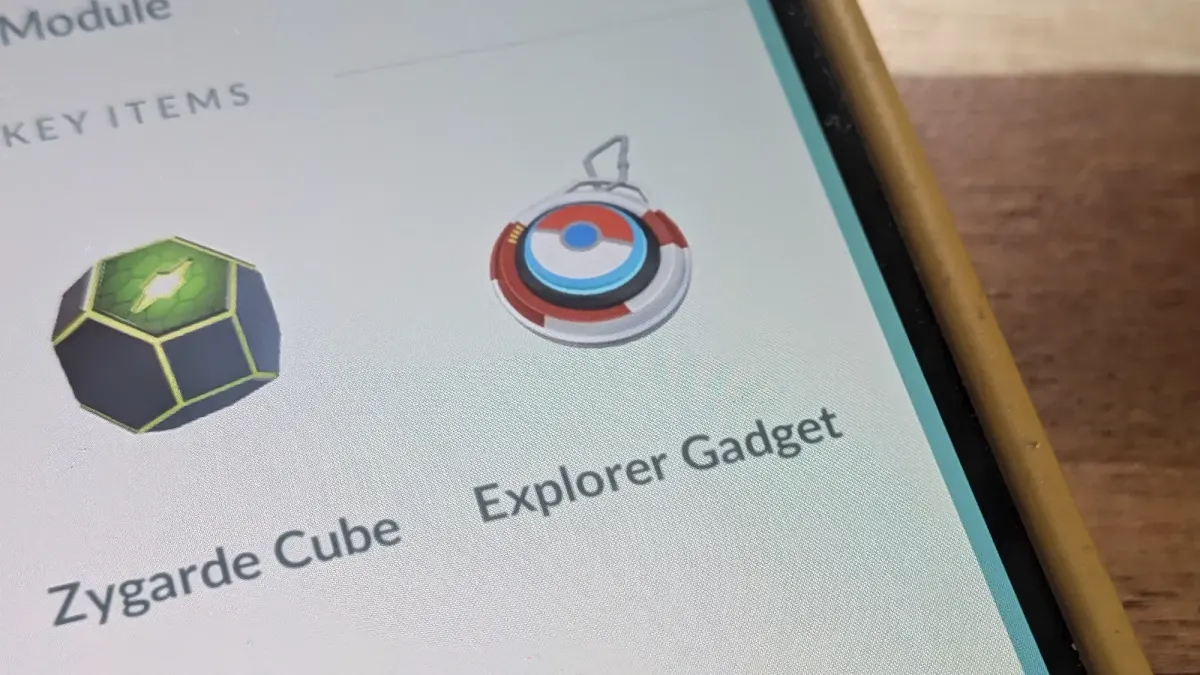
To use the Explorer Gadget, tap the icon on the upper right side of the map screen, or visit your item inventory, where it'll be listed.
How to use the Explorer Gadget
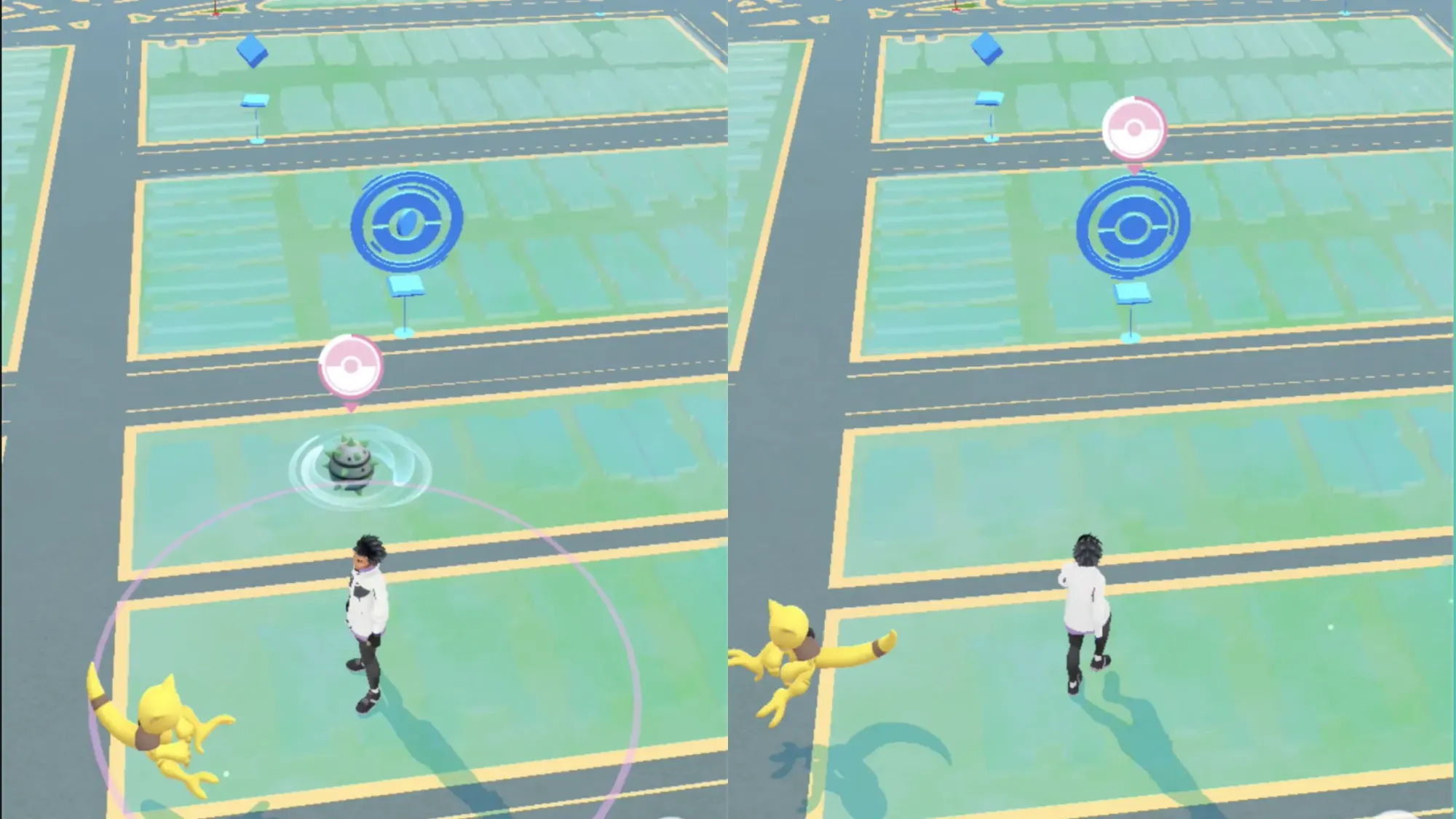
- The Explorer Gadget works when the game is both open - you'll see a pink PokéBall symbol appear on Pokémon and PokéStops it's attempting to interactive with - and in the background, such as when you are using another app, or when the phone screen is turned off.
- When you see the pink PokéBall symbol, if you're quick, you can interrupt the process by tapping the Pokémon or PokéStop.
- To use the Explorer Gadget in the background or while the phone screen is off, Pokémon Go cannot be closed completely.
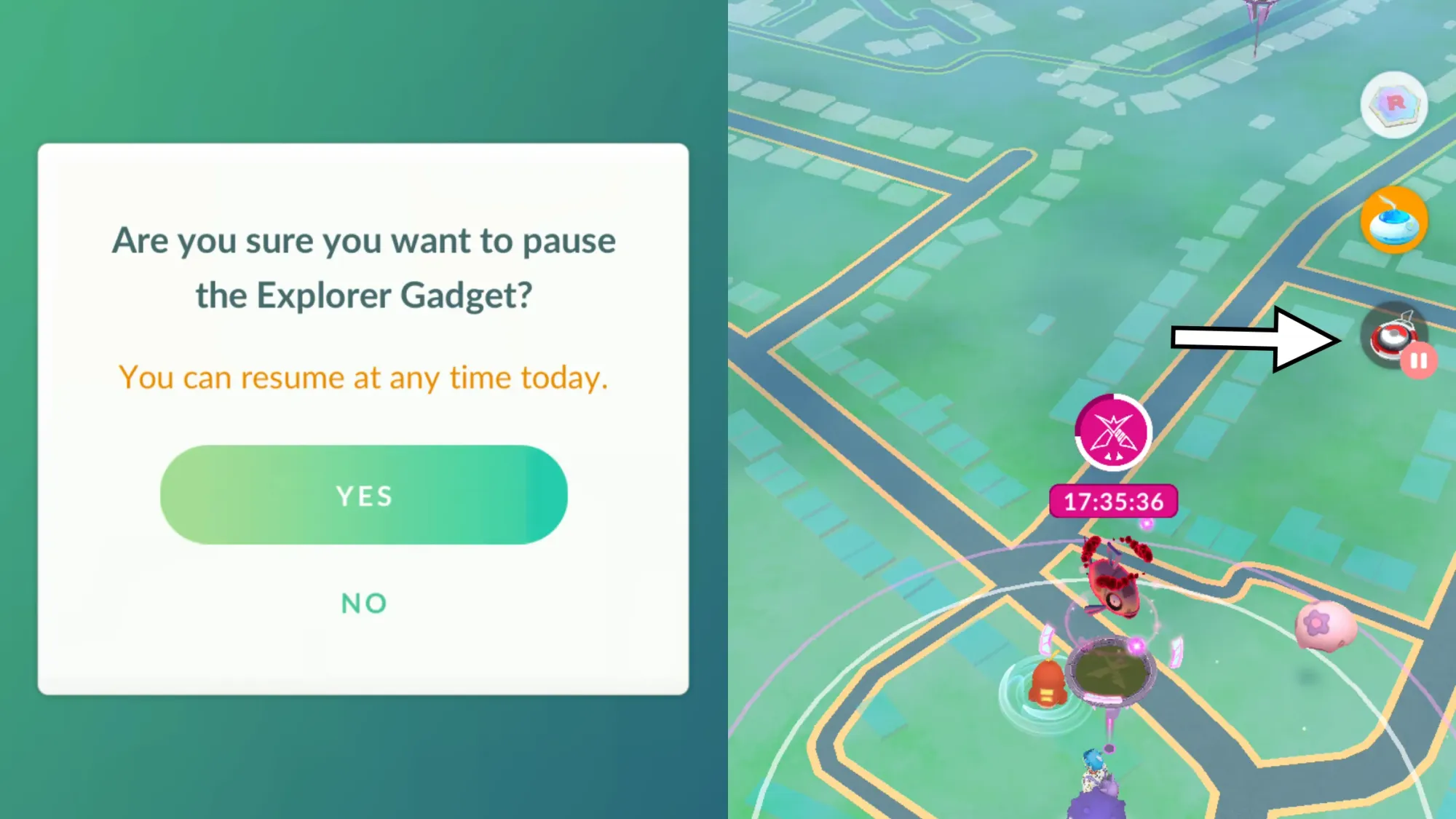
- The Explorer Gadget can be paused and resumed, allowing you to use it in stages, until it's fully consumed that day, by tapping the symbol on the upper right side of the map screen.
How long does the Explorer Gadget last?
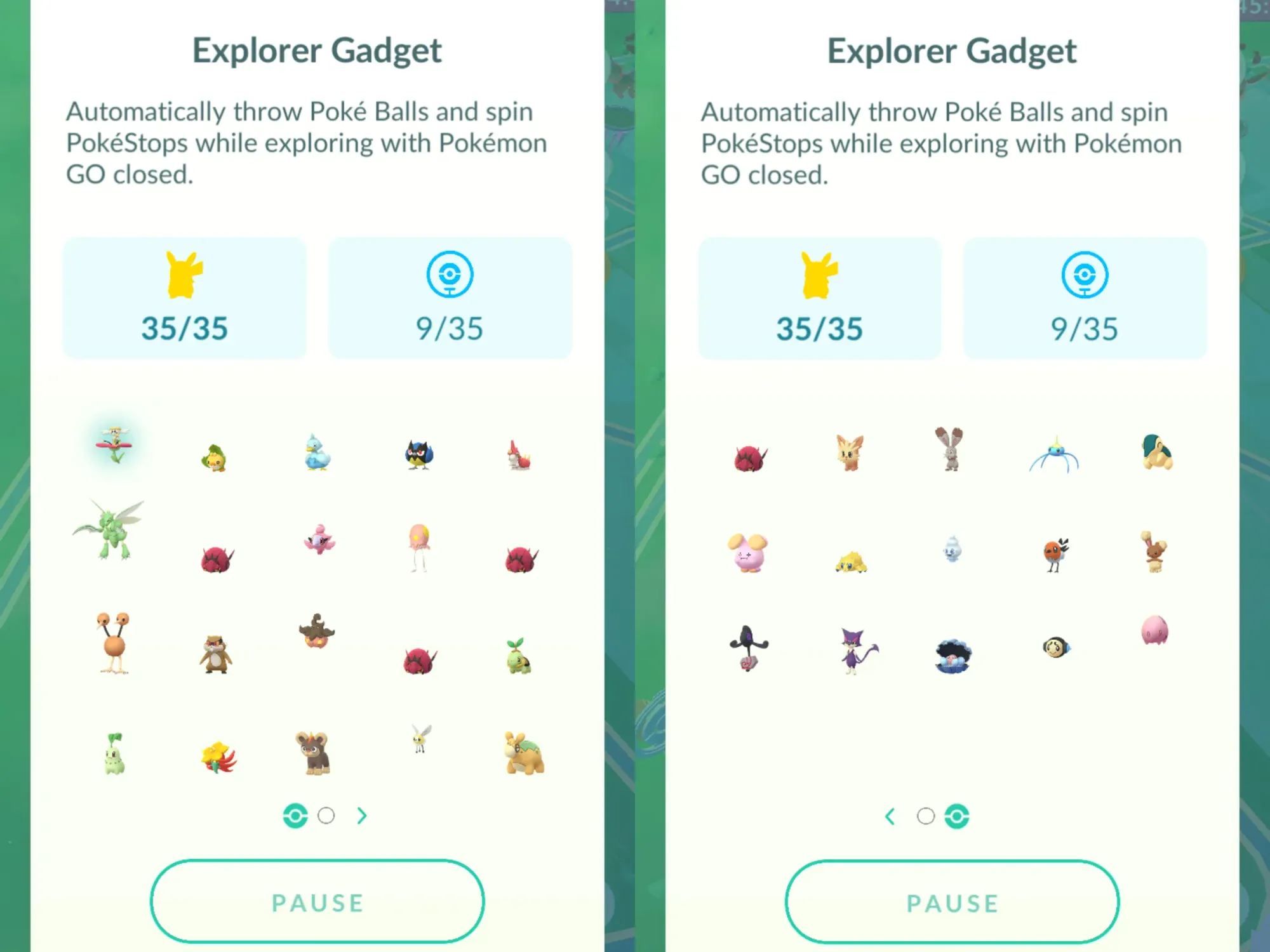
- The device has a limit to the number of Pokémon it can catch and the PokéStops it can spin every day. This is based on your Trainer level; for example as a Level 78 trainer, that is how many Pokémon and PokéStops you can catch and spin per day with the device.
- This is different to how it worked before the device was officially announced, with players having random numbers unrelated to their level, ranging from anywhere between 35 and 80. (I had 35, for example.)
- This Pokémon limit is also the total number of actual catches, and not attempted catches. This means if it misses, it'll continue operating until the limit has been reached.
- You can see what Pokémon you have caught by tapping the Explorer Gadget button. You'll also get a full recap of everything it caught when it has been fully consumed.
What are the limitations of the Explorer Gadget?
- When it comes to catching Pokémon, it only uses Poké Balls.
- When you run out of Poké Balls, or have full Pokémon storage or item inventory space, the device will stop operating until those are resolved.
- If you have push notifications enabled, you'll get one saying you have run out Poké Balls while using the device. (Thanks SDNite on reddit for revealing this.)
- The Explorer Gadget will not catch certain types of Pokémon - including those not in your Pokédex, or Mighty Pokémon during Go Wild Area.
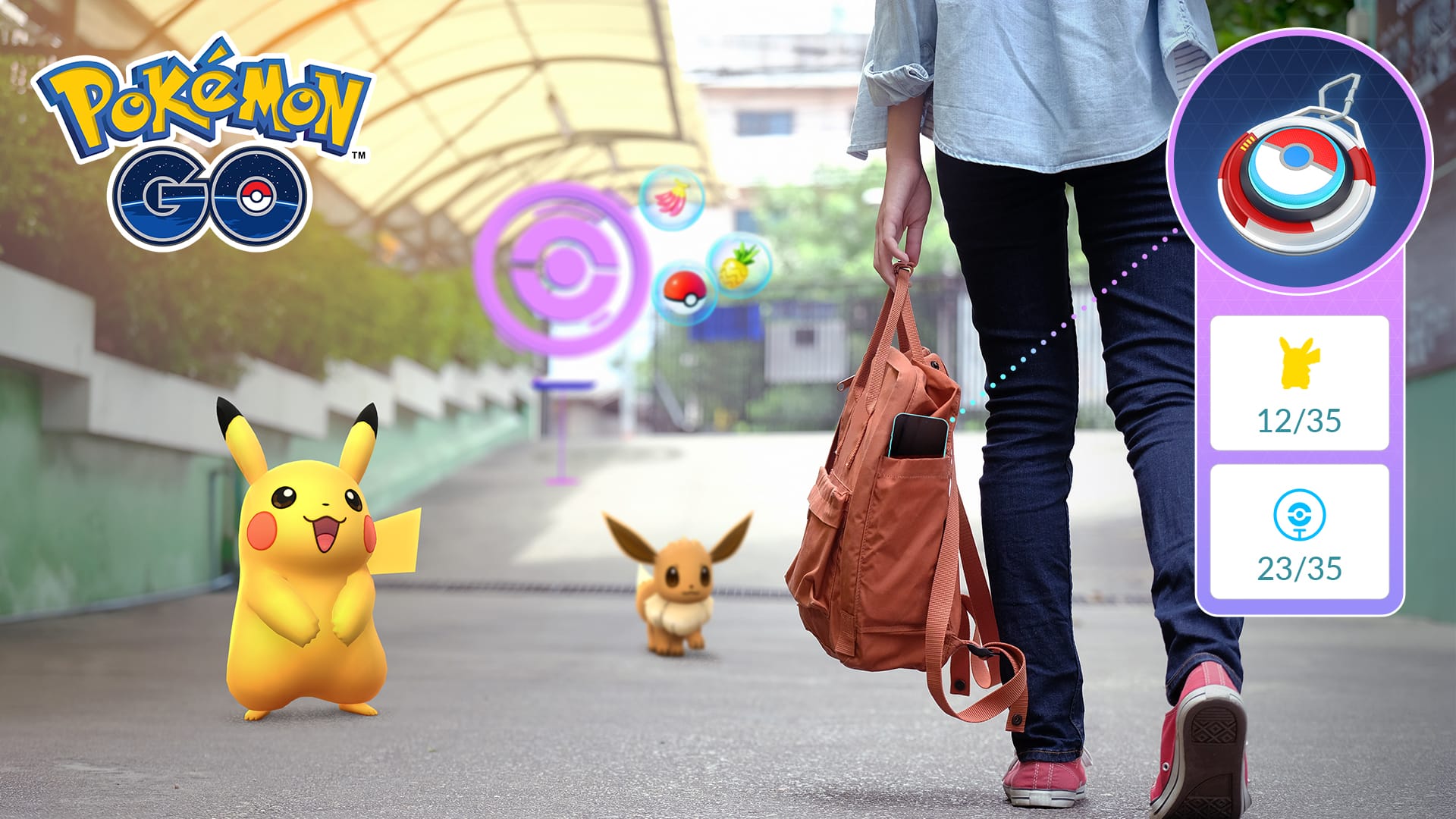
- When active, the Explorer Gadget appears above where the Daily Adventure Incense is on the map screen. It temporarily replaces any Go Plus devices you might have, until it's fully consumed or disabled (see the next section for steps on how to do this).
- You cannot use an Explorer Gadget and a Go Plus device at the same time.
If you want to know my thoughts on how the Explorer Gadget can be improved - and the three things I already appreciate about it - then you can read the following feature:
 Matthew Reynolds
Why the Explorer Gadget is not working for you
If you have the Explorer Gadget and find it is not working, it could be for a few reasons:
- Though it can catch and spin while the app is open (following an update in September 2026) it works best when you are moving. You can see it working with a pink Poké Ball-like symbol that appears over the Pokémon it is catching / Poké Stop it is spinning.
- Either way, the Explorer Gadget works a little slower than Go Plus devices in my experience, meaning it'll take longer to locate things to catch and spin.
- Make sure you have regular Poké Balls in your inventory to catch Pokémon, and room in your item inventory, as both can prevent it from working.
- If you haven't already, make sure Adventure Sync is enabled so it can track your movements while the app isn't active.
How to disable the Explorer Gadget for a Go Plus device
Since the Explorer Gadget has several differences compared to a Go Plus device, you might find you'll prefer to use your Go Plus instead.
There is a way, however, to switch the Explorer Gadget for a Go Plus:
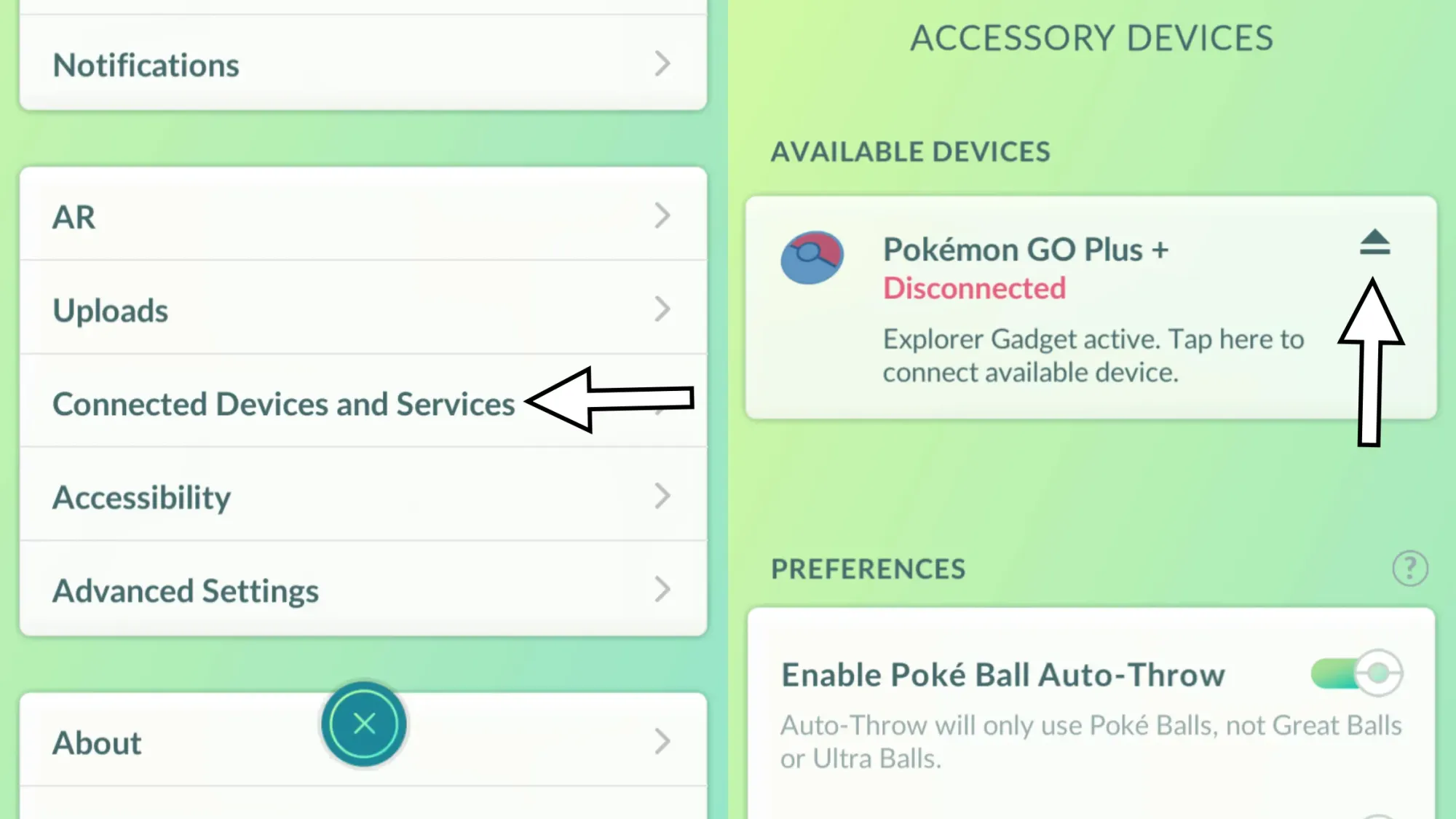
- Open 'Settings' (by tapping the Poké Ball icon at the bottom centre of the map screen, then 'Settings' is in the upper right corner)
- Tap 'Connected Devices and Services'
- Tap 'Accessory Devices'
- Select the top-most option which displays your synced Pokémon Go Plus device
If you decide to do the above, know that you cannot use the Explorer Gadget again that day.

Sign up to the newsletter mailing list for a FREE guide to the week ahead in Pokémon Go - plus original reporting and features straight to your inbox.


